How to send New Leads to Follow Up Boss with Zapier [STEP-BY-STEP]

Here’s a quick and simple guide to connect Advertizip with Follow Up Boss through Zapier. Let’s walk through the steps.
1. Open the Zapier Integration
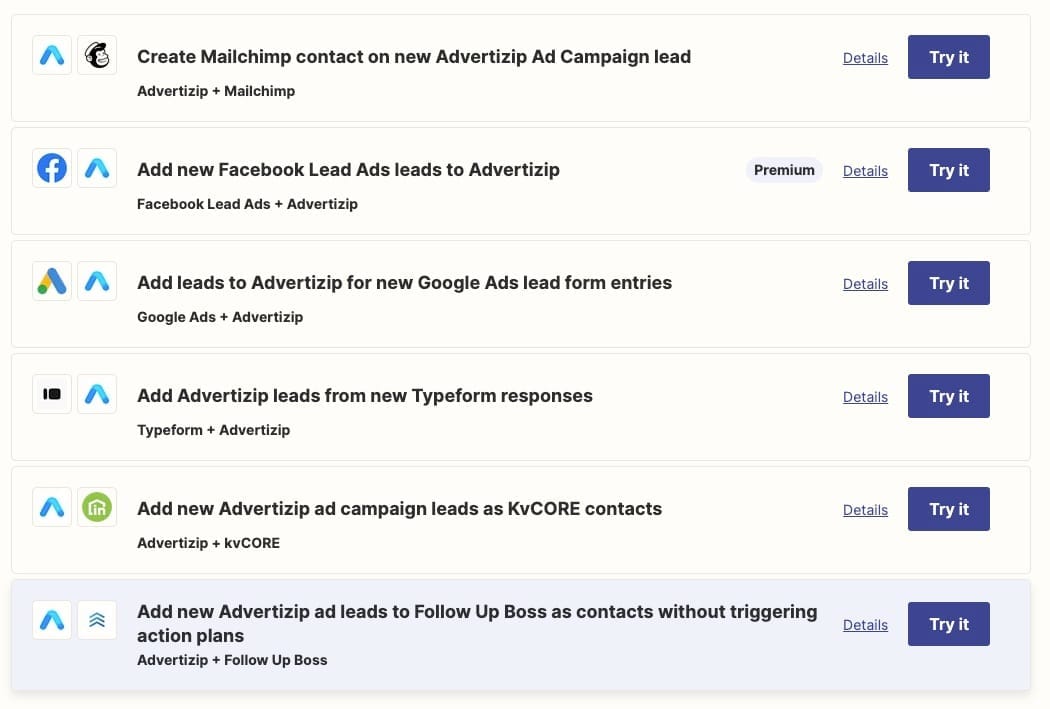
Visit: zapier.com/apps/advertizip/integrations
There you’ll find the highlighted Zap shown in the image.
2. Open the Diagram and Select Advertizip
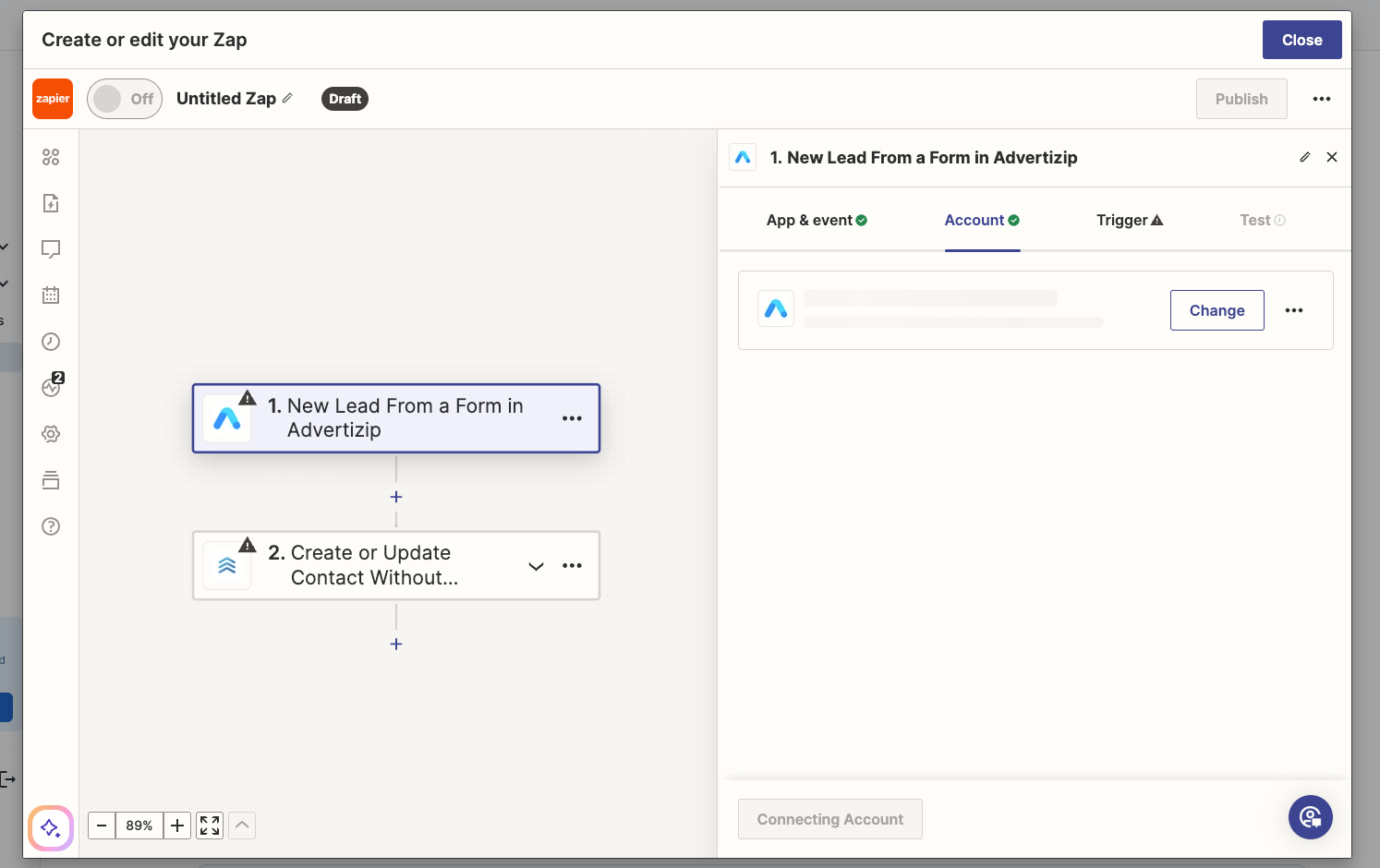
You’ll see a diagram showing both apps.
Click on Advertizip and open the Account tab.
3. Connect Your Advertizip Account
Enter your user email and the password you use to log into Advertizip.
If you created your account using Google Sign-In, your account does not have a password set.
Just go to the login page, click “Forgot my password”, and follow the instructions sent to your email.
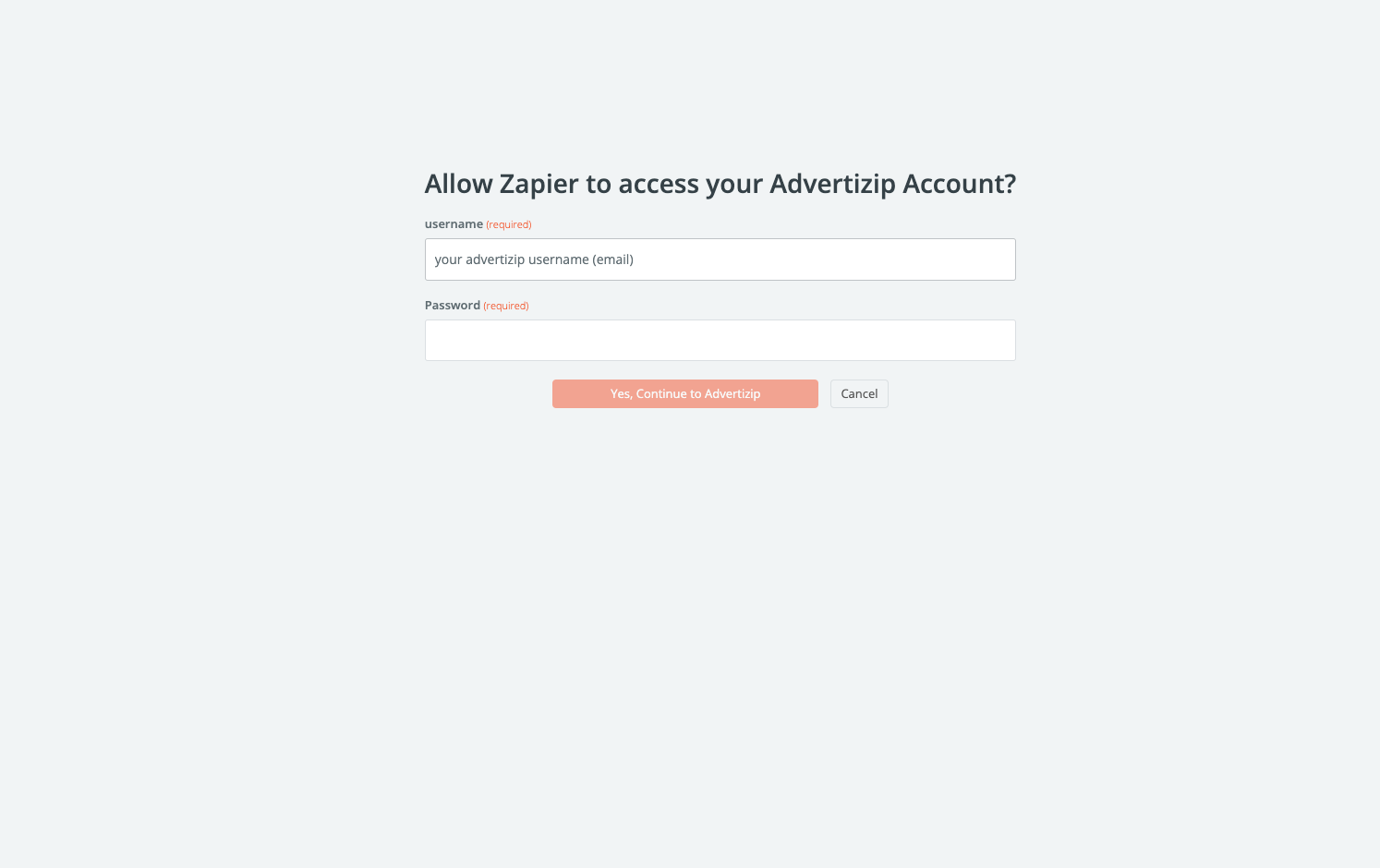
4. Select Your Active Campaign in the Trigger
Go to the Trigger tab and choose your current lead generation campaign (you’ll only see one).
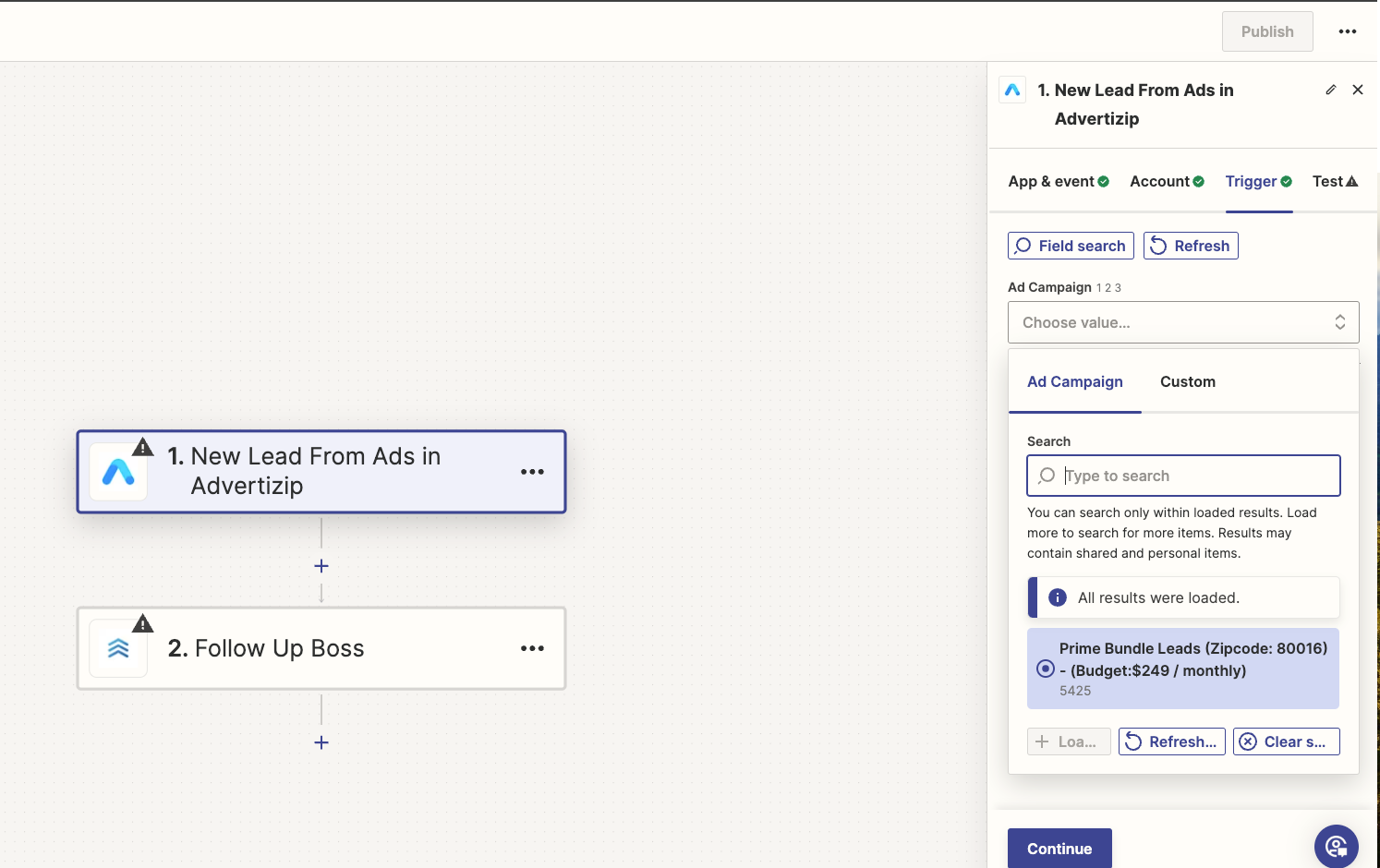
5. Test the Trigger (Important)
In the Test tab, click Test Trigger.
Once it loads, a button called Skip Test will appear briefly at the bottom.
You need to click it quickly before it disappears (Zapier bug from this week).
You’re now done with the Advertizip setup.
On the diagram on the left, click Follow Up Boss.
6. Configure the Follow Up Boss Action
In the App & Event tab, select:
Create or Update Contact Without Triggering Action Plan.
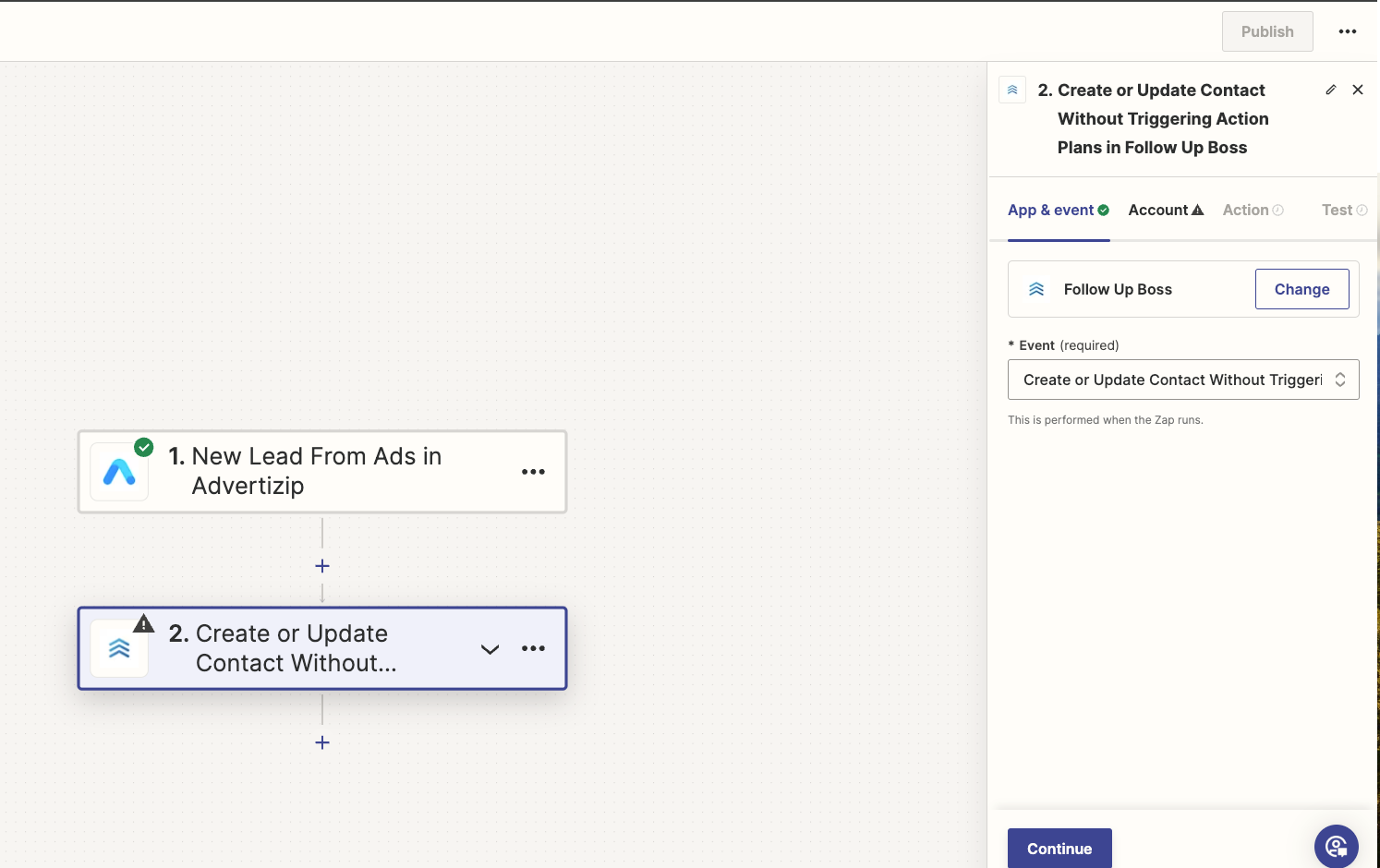
7. Insert Your Follow Up Boss API Key
In the Account tab, enter your Follow Up Boss API Key.
Then click Continue in the next two tabs to complete the setup.
All Set!
From now on, all your new leads will automatically be delivered to your Follow Up Boss account.
If this guide helped you, share it with your team.