Meta Andromeda & Conversion API for Realtors: How to Improve Real Estate Lead Conversion with Advertizip

If you're running Facebook Buyer Lead campaigns through Advertizip, your ads are already generating leads. But here's what most agents don't realize: Facebook has no idea what happens after someone fills out your lead form.
Without feedback, Facebook's algorithm treats every lead the same — the one who ghosted you and the one who closed a $500K deal. That means your ad budget is being spent to find more people like both of them, instead of focusing on the ones who actually convert.
Conversion Events change that.
Starting today, Advertizip lets you send real outcomes — like "Contact Made," "Showing Scheduled," or "Deal Closed" — directly back to Facebook. This tells the algorithm exactly which leads turned into real business, so it can find more people like your best clients.
Early data shows that advertisers who send conversion events back to the platform see around a 35% improvement in conversion rate over time.
What Is Meta Andromeda?
Meta Andromeda is part of Meta’s next-generation advertising infrastructure that changes how data is used to optimize your campaigns. Instead of relying only on what happens inside Facebook, Andromeda focuses on real, off-platform outcomes — like actual conversations, appointments, and closed deals — to improve ad performance.
The video below is a great reference to help you fully understand what Meta Andromeda is and how it impacts the way you run your ads and feed your campaigns with real data.
What Are Conversion Events?
Conversion events are signals you send back to the ad platform (Facebook, in this case) that tell it what happened after a lead came in.
Think of it this way: Facebook is great at finding people who will click your ad. But it doesn't know if that click turned into a phone call, a showing, or a closed deal — unless you tell it.
When you send these signals, Facebook's AI starts learning patterns:
- "People in this zip code who are 35–45 tend to schedule showings"
- "Leads from Instagram Reels are more likely to close deals"
- "People who engage at 8pm convert better than those at 2pm"
Over time, your campaigns get smarter and your cost per quality lead goes down.
How It Works in Advertizip
We've built this directly into your lead management workflow. You don't need to touch Facebook Ads Manager, install any code, or configure APIs. Advertizip handles the routing automatically.
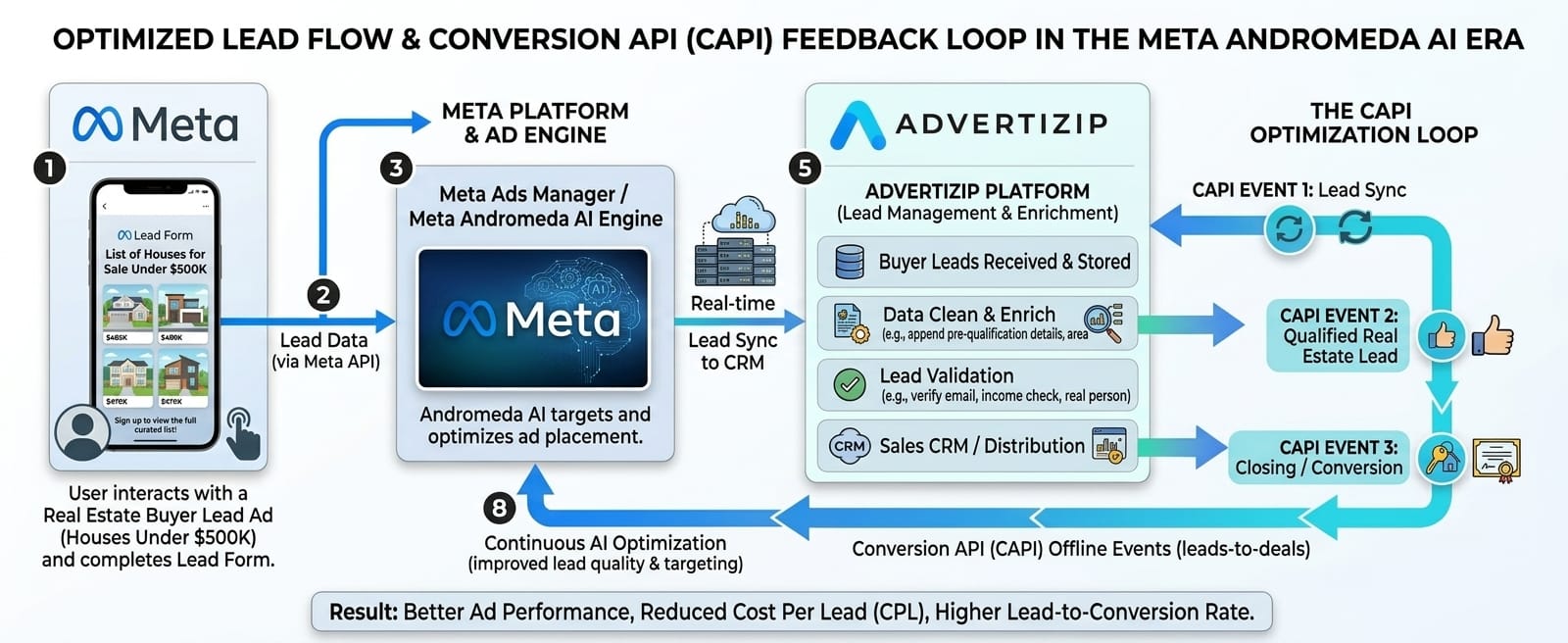
Here's the flow:
- A lead comes in from your Facebook campaign
- You interact with the lead (call, schedule showing, close deal)
- You send a conversion event from the lead's detail page
- Advertizip routes that event to Facebook through the Conversions API
- Facebook's AI uses that data to optimize your future ad delivery
Step-by-Step: Sending Your First Conversion Event
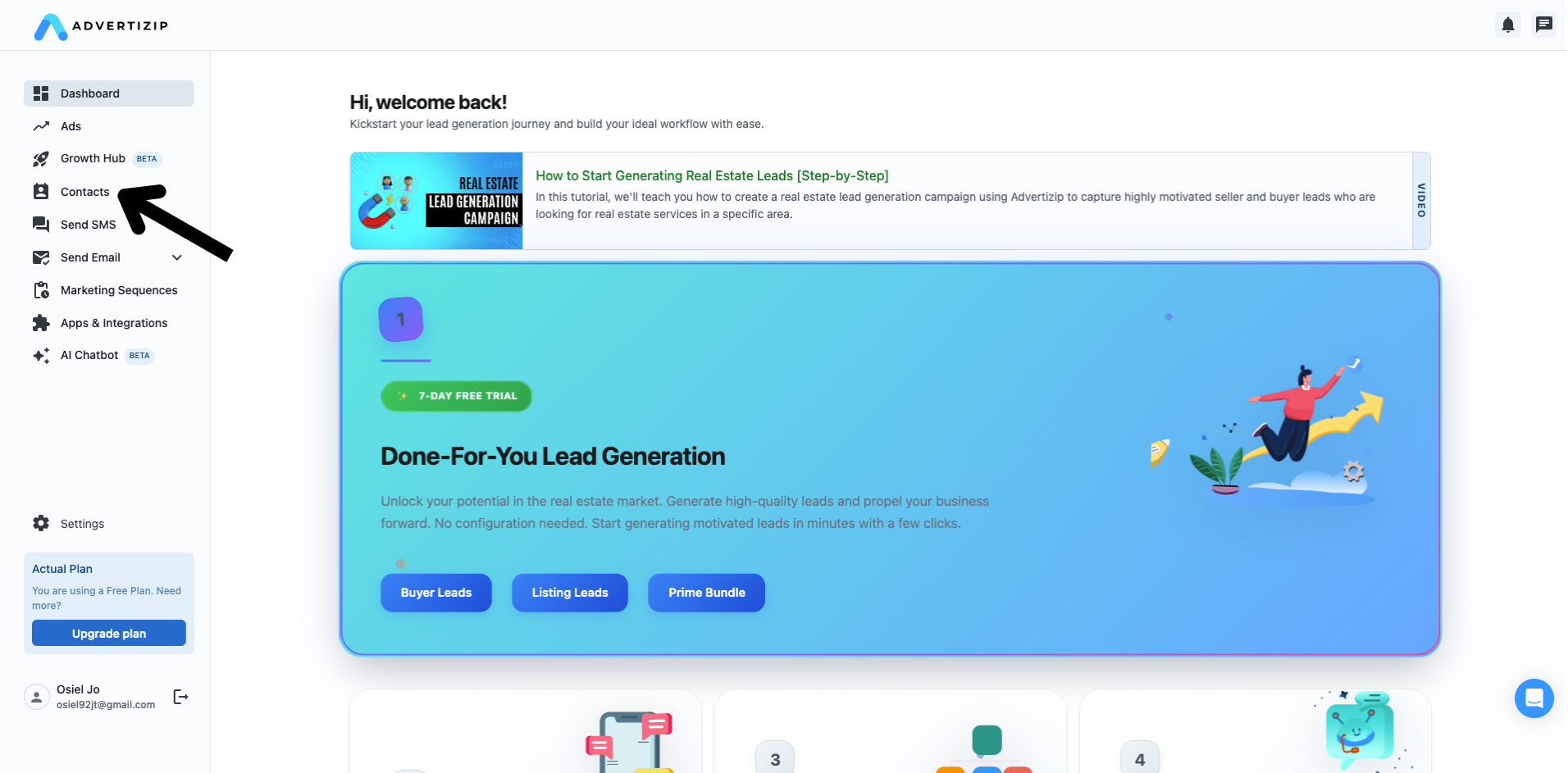
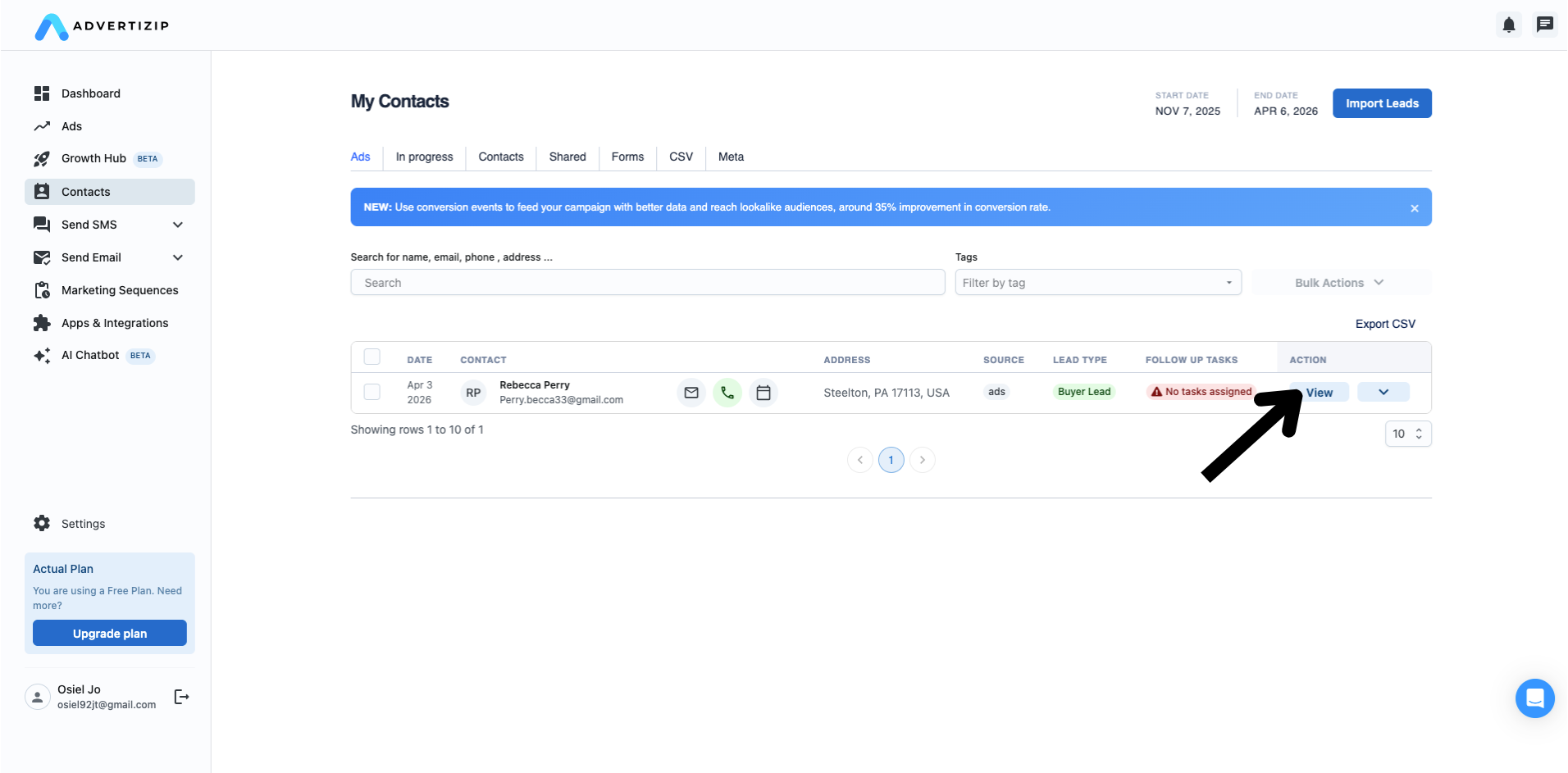
Step 1: Open a Lead
Go to your Contacts page and click on any lead to open the detail view.
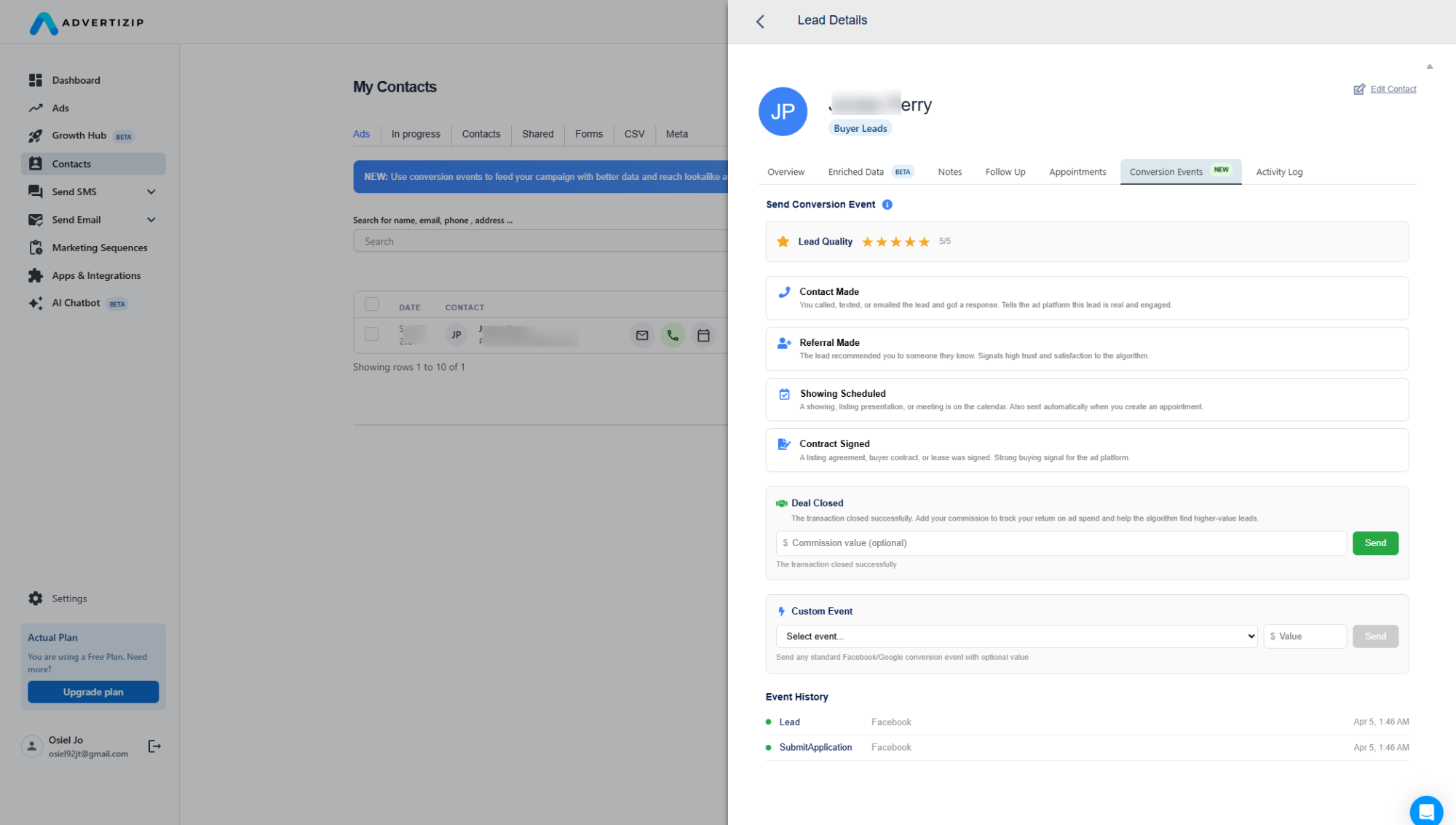
Step 2: Navigate to the Conversion Events Tab
In the lead detail view, click on the "Conversion Events" tab. You'll see it marked with a green NEW badge.
Step 3: Rate the Lead Quality
At the top of the tab, you'll see the Lead Quality rating. Give the lead a star rating based on your interaction.
This matters because:
- 1–2 stars: No conversion event is sent to Facebook. This prevents bad leads from polluting your optimization data.
- 3–5 stars: Conversion events will be sent to Facebook, telling the algorithm this is the type of person you want more of.
Step 4: Send a Conversion Event
Below the quality rating, you'll see the event buttons. Each one represents a stage in your pipeline:
- Contact Made — You successfully reached and spoke with the lead
- Referral Made — The lead referred a friend or family member to you
- Showing Scheduled — A property showing or meeting was scheduled (also sent automatically when you create an appointment in Advertizip)
- Contract Signed — A listing agreement, purchase contract, or lease was signed
- Deal Closed — The transaction closed. You can add the commission value here.
Simply click the event that matches what happened with this lead.
Step 5: Log a Deal Closed with Value
When a deal closes, use the Deal Closed section to log the transaction. Enter your commission value in the dollar field and click Send.
This is the most important event for ROI tracking. It tells Facebook "this lead was worth $X" — and Facebook uses that to find more high-value leads.
Step 6: Send a Custom Event (Optional)
If you need to send a specific Facebook standard event that isn't in the quick actions, use the Custom Event dropdown. Select from available events like CompleteRegistration, ViewContent, Search, or FindLocation, optionally add a dollar value, and click Send.
Step 7: Check the Event History
Scroll down to see the Event History — a log of every conversion event sent for this lead, including the platform, status, value, and timestamp.
Understanding the Info Guide
Click the info icon next to "Send Conversion Event" to see a full explanation of each event and how it helps your campaigns. This guide explains:
- What each event does
- Which events are sent automatically vs. manually
- How Advertizip routes your events to Meta or Google depending on where your campaign is running
- Why you should always include dollar values on Deal Closed events
What Happens Behind the Scenes
When you click a conversion event button, here's what Advertizip does:
- Checks lead quality — If the lead is rated 1–2 stars, the event is blocked. No bad data goes to Facebook.
- Resolves the campaign — Advertizip determines which ad account and pixel the lead came from.
- Matches the lead — We send the lead's email, phone, and (when available) the Facebook lead form ID for exact attribution.
- Sends via Conversions API (CAPI) — The event goes server-to-server directly to Facebook. No browser pixels, no cookie issues, no data loss.
- Logs everything — The event appears in your Activity Log and Event History for full transparency.
Automatic Events
Some events are sent automatically so you don't have to think about it:
- Lead event — When a lead quality rating of 3+ stars is given, a
Leadevent is sent to Facebook confirming this is a qualified lead. - Schedule event — When you create an appointment from the Appointments tab, a
Scheduleevent is automatically sent to Facebook.
You can always send additional events manually on top of the automatic ones.
The Activity Log
Every interaction with a lead is now tracked in the Activity Log tab — including conversion events, quality ratings, notes, and appointments. This gives you a complete timeline of your relationship with each lead.
Available Now for Advertizip Buyer Lead Campaigns and Your Own Meta Ad Campaigns
Conversion Events are currently available for all Buyer Lead campaigns running through Advertizip. Whether your campaign is managed by our team (using Advertizip's ad account) or running on your own connected Meta ad account, conversion events are automatically routed to the right place.
For Advertizip-Managed Campaigns
No setup needed. Conversion events are sent to our global pixel, and Facebook attributes them to the correct campaign automatically.
For Your Own Connected Ad Account (FREE)
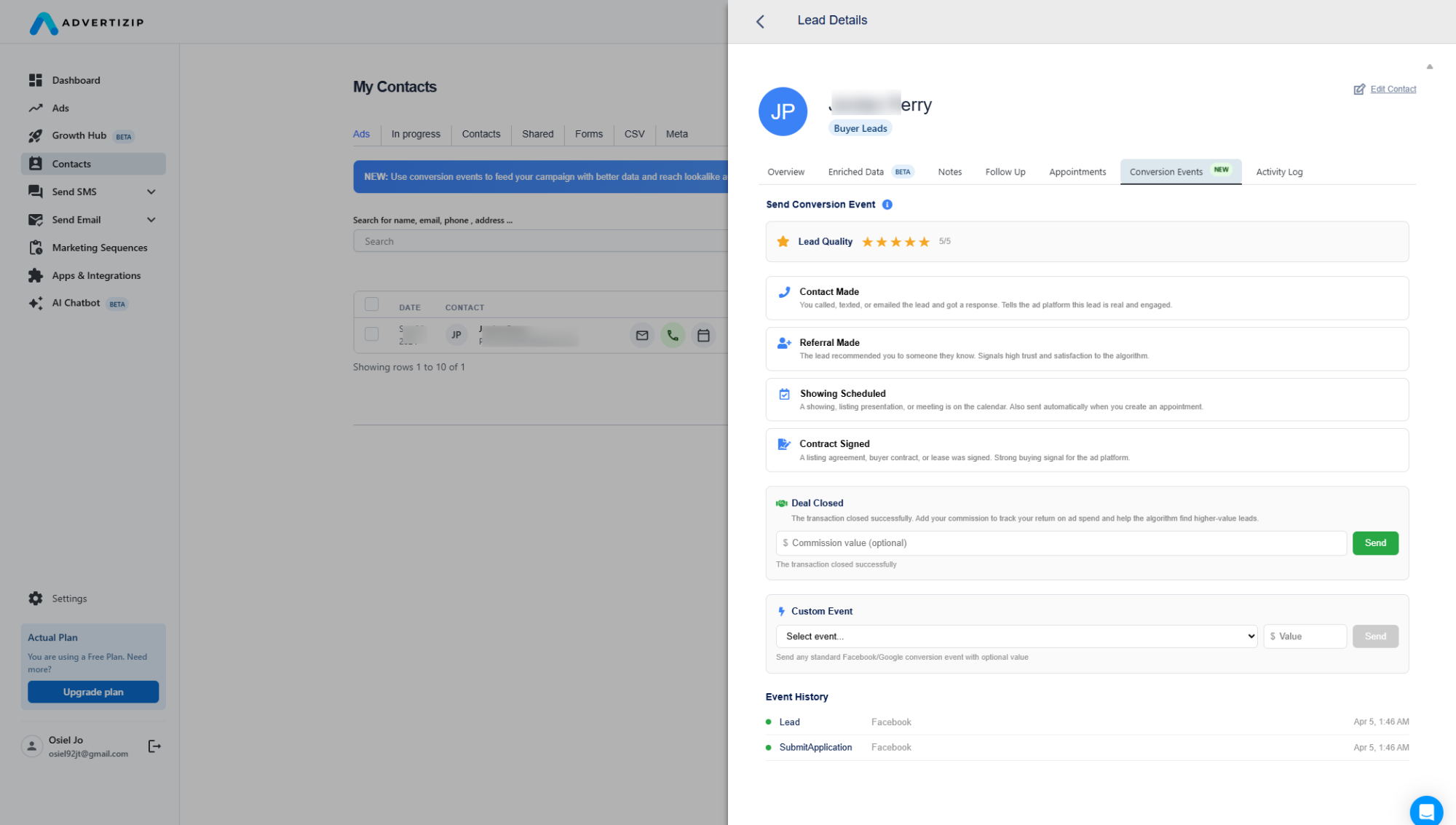
Make sure you've completed the setup in Growth Hub > Ad Accounts:
- Connect your Meta account
- Set up billing
- Configure your pixel
- Send your first conversion event
Why This Matters for Your ROI
Without conversion events, you're essentially flying blind. You know how many leads you got and how much you spent, but you don't know:
- Which leads turned into real business
- How much revenue your ad spend generated
- Whether Facebook is optimizing for the right people
With conversion events, you close the loop. You can see:
- Cost per qualified lead (not just cost per lead)
- Revenue generated from Deal Closed events with values
- True ROAS (Return on Ad Spend) — dollars earned vs. dollars spent
And most importantly, Facebook's AI gets smarter with every event you send, continuously improving the quality of leads coming into your pipeline.
Get Started Today
- Go to your Contacts page
- Open any lead from a buyer campaign
- Click the Conversion Events tab
- Rate the lead and send your first event
It takes less than 10 seconds per lead, and the compounding effect on your campaign performance is significant.
Have questions or feedback? Use the Send Feedback button at the bottom of the Growth Hub — we're actively building based on your input.
Conversion Events is currently in beta for Buyer Lead campaigns. We're expanding support to Listing Leads and Google Ads campaigns soon. Stay tuned.